Players hear your menu before they hear your game. A click that answers every press, a soft hover, a clear yes and no: these small sounds make an interface feel solid, and missing ones make it feel unfinished. This checklist lists the interface sounds most games need, the rules that keep them pleasant after the hundredth press, and a simple way to wire them up.
The sounds almost every game needs
Start with the buttons. These play the most, so they matter most:
- Click: the default press for any button.
- Hover or focus: a very quiet tick when the cursor or the gamepad moves onto a button.
- Confirm and cancel: a rising and a falling gesture, so yes and no are heard without reading.
- Back: a short downward move when a screen closes.
- Error: two low, flat notes for a press that is not allowed, such as buying without enough coins.
- Disabled: a dull, muted tap for a greyed-out button.
Then the menus and controls: opening and closing a menu, switching tabs, a pop-up appearing and closing, toggles on and off, slider and list-scroll ticks, a swipe for sliding panels and a page turn for books and journals.
Text, rewards and game screens
Dialogue boxes use typing blips: one short note per letter or per few letters. Give characters different voices by pitch, for example a low, a mid, a high and a tiny voice. Add a sound for a new message, a notification and a quest log update.
Rewards are where sound earns its keep. A coin, a handful of coins, a gem, a rating star, a reward jingle, a purchase, a level up, an achievement and an unlock each deserve their own gesture, ordered from small to big: the bigger the moment, the longer and higher the sound. Finally the game screens: countdown ticks and a GO, a timer warning, pick up and drop for drag and drop, equip, opening the inventory, picking up an item and a game-saved cue.
Rule 1: one style for the whole interface
Mixing a wooden click with a sci-fi bleep and a chiptune coin sounds like three games. Choose a style that matches the art: soft wood and bubbles for cozy games, clean sine tones for modern apps and puzzles, FM bleeps for science fiction, bells and harp for fantasy, pulse waves for pixel-art retro games. Keep every interface sound in that style.
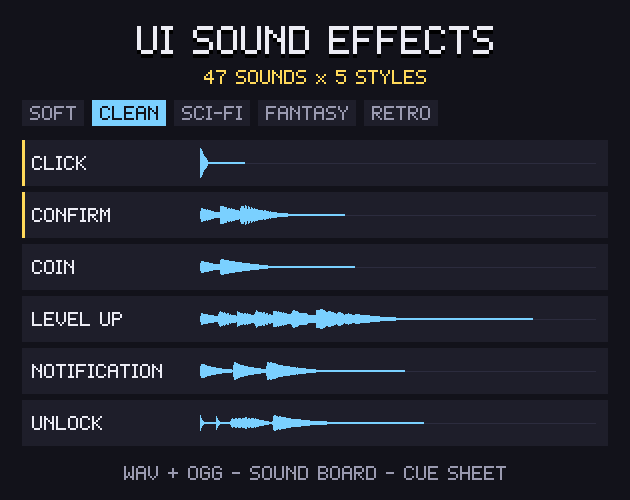
Our UI Sound Effects are built around this rule: 47 interface sounds, each in five styles (Soft, Clean, Sci-Fi, Fantasy and Retro), with the same file names in every style folder. Changing the folder changes the whole interface's sound.
Rule 2: quiet sounds for things that repeat
A hover sound plays every time the cursor crosses a button, and a typing blip plays dozens of times per line. If they are as loud as a level up, they become tiring fast. Mix by how often a sound plays:
- Hover, slider and scroll ticks, typing blips: a few dB under the rest.
- Clicks, toggles and menu sounds: the normal level.
- Rewards and level ups: the normal level, but longer and brighter so they feel bigger without being louder.
Loudness matching helps: if every file is normalised to the same perceived loudness (our pack uses -12 dB, measured over the loudest 100 milliseconds, with peaks at most -1 dBFS), you only set those few offsets once, instead of adjusting every file by ear.
Rule 3: short and tight
Interface sounds must start the moment the button is pressed. Trim any silence at the start of a file, keep clicks under a tenth of a second and most other interface sounds under half a second. Let only rewards ring longer. A long reverb tail is fine in a fantasy style, but the attack must still be immediate.
Rule 4: do not repeat the exact same sound too fast
When a sound fires several times a second, such as coins counting up or a slider dragging, play it with a small random pitch change (a few percent up or down) and limit how many copies play at once. Most engines can do both: Godot's AudioStreamPlayer has pitch_scale and max_polyphony, and Unity's AudioSource has pitch.
Hooking sounds up to menus
The cleanest setup is one small sound manager that every button calls, instead of an audio player inside each button.
- Give the manager a dictionary from a short name (click, hover, confirm) to a file.
- Connect your buttons' pressed and focus-entered (or mouse-entered) signals to it once, for example by walking the menu's children when the menu opens.
- Put interface sounds on their own audio bus, so players can turn them down separately from music and game sounds.
- Keep the style in one setting: the folder name. A settings option can even let players pick the style.
Use OGG files for small downloads and fast loading in Godot, GameMaker, Phaser or Ren'Py, and WAV where your engine prefers it, such as Unity for very short sounds.
A quick checklist
- Buttons: click, hover, confirm, cancel, back, error, disabled.
- Menus: open, close, tab, pop-up, toggles, slider and scroll ticks.
- Text: typing blips in a few voices, message, notification.
- Rewards: coin, gem, reward, purchase, level up, achievement, unlock.
- One style for everything, loudness-matched, quiet repeaters.
- Short attacks, a little pitch variation, one sound manager, one UI bus.
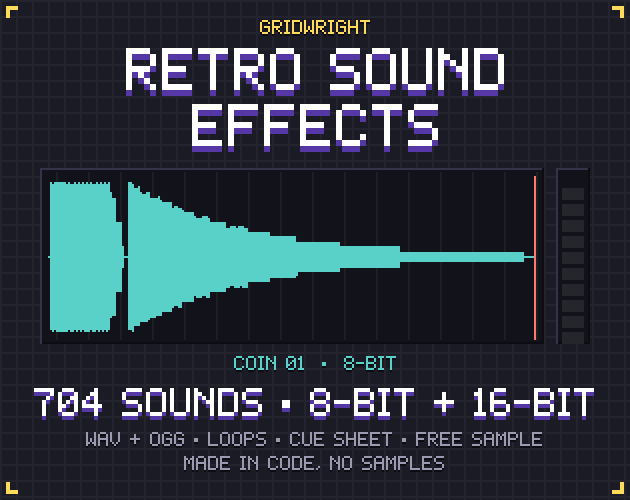
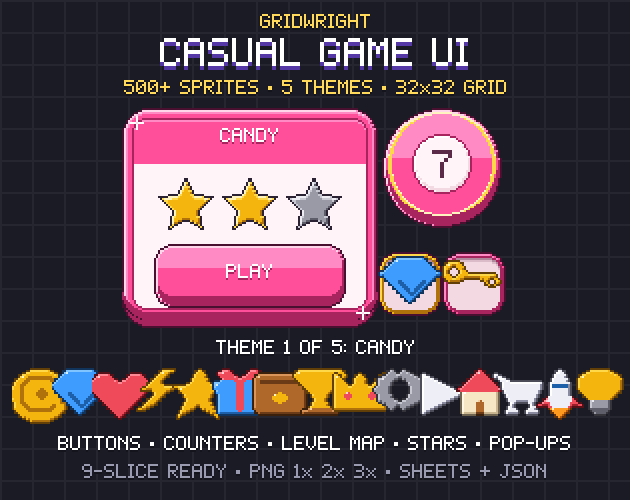
For in-game action sounds such as jumps, hits and explosions, our Retro Sound Effects cover 352 designs in 8-bit and 16-bit, and a Casual Game UI kit gives you the buttons to put these sounds on.
You can use the sounds in personal and commercial games, as long as you credit "Art by Gridwright" with a link and do not resell the files themselves. More in can I use game assets in a commercial game.