A PNGTuber is the simplest way to put a face on a stream without showing your own. Instead of a rigged 3D or Live2D model that follows your head, a PNGTuber is a handful of flat pictures that swap when you speak. Your microphone does the animation: quiet shows one picture, talking shows another, and a blink now and then makes it feel alive. This guide explains the pictures you need, the sizes that keep pixel art sharp, and how to get an avatar on screen in a few minutes.
What a PNGTuber avatar is
A PNGTuber app listens to your microphone. When the volume goes over a threshold, it shows the talking picture; when it drops, it goes back to the quiet one. Many apps also show a blink picture every few seconds and add a small bounce while you talk. The app then sits in your streaming software as a window or browser source with a transparent background, so only the avatar shows over your game.
Because the avatar is just pictures, anyone who can draw, or buy, a few PNG files can be a PNGTuber. There is no face tracking, no webcam and no rigging, which is why it is a popular start for new streamers, people who do not want to be on camera, and anyone streaming from a laptop.
The four pictures every app swaps
Every PNGTuber setup comes down to two questions: is the mouth open, and are the eyes open? That gives four pictures per look.
- Idle: mouth closed, eyes open. Shown while you are quiet.
- Blink: mouth closed, eyes closed. Shown for a moment every few seconds.
- Talk: mouth open, eyes open. Shown while you speak.
- Talk and blink: mouth open, eyes closed. Shown when a blink lands while you speak; apps without this slot use the talk picture.
Draw all four from the same base, so nothing but the eyes and mouth moves between them. If the hair or shoulders shift by even a pixel between pictures, the avatar will jitter every time you talk.
Expressions as states
Once the basic four pictures work, the next step is expressions. Most apps let you keep several states, sometimes called costumes, and switch between them with a hotkey: a happy state for a win, a shocked state for a jump scare, a sad one for a lost run. Each state needs its own four pictures, so an avatar with eight expressions is 32 pictures. It sounds like a lot, but it is what makes a PNGTuber feel like a character instead of a sticker.
- Neutral for most of the stream.
- Happy for wins, follows and good news.
- Shocked for surprises and jump scares.
- Sad or ouch for losses and deaths.
- Thinking for puzzles and reading chat.
- Angry or scared for the moments that make a clip.
Sizes for a sharp pixel avatar
Pixel art has one rule on stream: scale it by whole numbers. A 64x64 avatar shown at exactly 128, 256 or 512 pixels keeps every pixel square. Shown at 300 pixels, the software has to invent pixels between the real ones, and the edges go soft or uneven.
- 512 px tall works for a 1080p stream where the avatar is a main part of the layout.
- 256 px fits a corner next to the game or a facecam-sized spot.
- 128 px is right for small overlays and Discord calls.
- In OBS, right-click the source, open Scale Filtering and choose Point, so OBS never smooths the pixels if you resize it.
Place the avatar on the bottom edge of the screen. Head-and-shoulders busts are drawn to end at the bottom of the picture, so a bounce reads as a little hop instead of a floating head.
No app? Use a looping GIF
If you only want an avatar in the corner without voice switching, a looping GIF with a transparent background does the job: add it to OBS as an image source and it plays by itself. It will not react to your voice, but it gives a stream personality with zero setup, and it is a good way to test a look before you build the full set of states.
Matching the rest of your stream
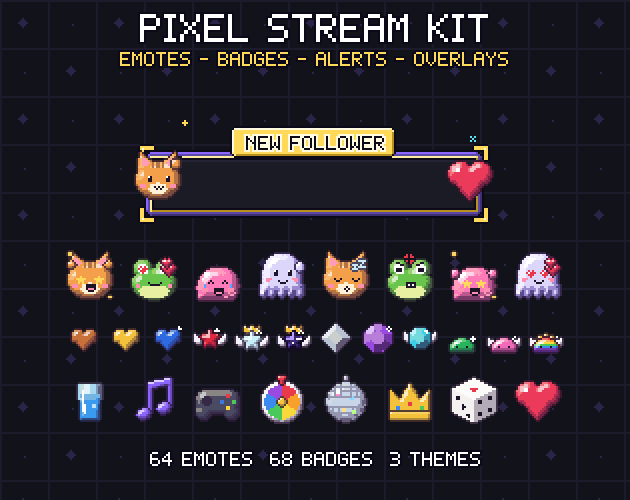
An avatar looks best when the rest of the channel speaks the same visual language. Pixel art emotes, sub badges, alerts and starting soon screens in the same style tie the avatar into a brand; our Pixel Art Stream Kit has those pieces, and the Twitch emote and badge size guide lists the exact sizes each platform wants.
Starting with ready avatars
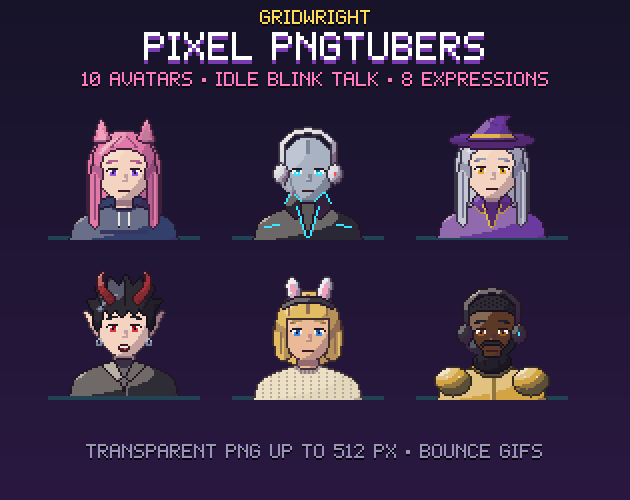
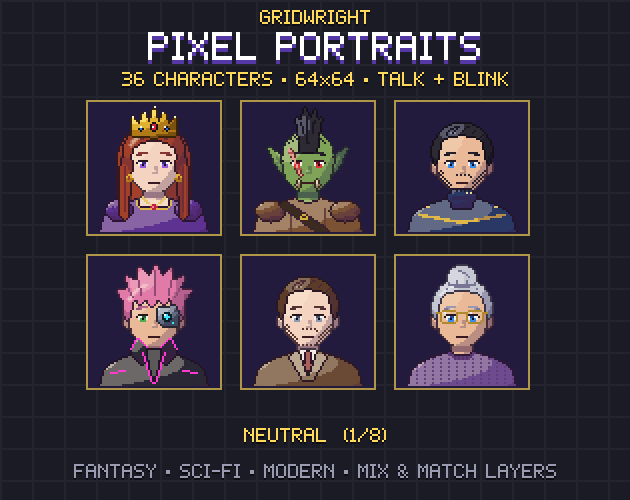
Drawing 32 pictures that line up to the pixel takes time. Gridwright Pixel PNGTuber Avatars has ten original pixel avatars, from a cat-eared gamer to a robot and a knight with a headset, each with eight expressions and all four pictures per expression, as transparent PNGs at 64, 128, 256 and 512 pixels, with a bounce GIF per avatar and a file that says which picture goes in which slot. If you make games as well as streams, the same style of faces comes as dialogue portraits in Pixel Portraits.
Tune the microphone threshold
The most common PNGTuber problem has nothing to do with the art: the mouth flaps on keyboard clicks, or stays shut on quiet words. Spend five minutes on the threshold. Talk at your normal stream volume, then type and click as you would in a game, and raise the threshold until the typing no longer opens the mouth while your voice still does. A short delay before the mouth closes again also helps, because it stops the avatar from chattering between syllables. If your app has a bounce strength, keep it small for pixel art: a hop of a few pixels reads better than a big jump.
A quick checklist
- Four pictures per look: idle, blink, talk, talk and blink.
- Only the eyes and mouth change between them.
- One state per expression, switched by hotkeys.
- Whole-number sizes and Point filtering for pixel art.
- The bust sits on the bottom edge of the screen.
- Test your microphone threshold so the mouth does not flap on keyboard noise.
The avatars can be used on streams, in videos and in commercial games with a credit (Art by Gridwright, with a link) in your channel's panels, the video description or the game's credits; only reselling the files themselves is not allowed. More in Can I use game assets in a commercial game?.