Most pixel art games need the same interface pieces: something that shows health, a grid of slots for items, and a HUD around the play area that doesn't cover it. This post covers health bar types, inventory grids, where HUD elements go and text that stays crisp, with each part built in Godot 4.
Start with the resolution
Every UI decision depends on the size you draw at. Godot's multiple resolutions page recommends the viewport stretch mode for pixel art, and since Godot 4.2 the scale mode can be set to integer, which rounds the scale down to a whole number. Its example: a 640x360 viewport in a 1366x768 window gets about 2.133x with fractional scaling, which distorts the art, and 2x with black bars when scaling is integer. The page calls 640x360 a good baseline because it scales to 1280x720, 1920x1080, 2560x1440 and 3840x2160.
So draw the UI at 1x in the base resolution and let the engine scale everything together. A panel scaled by 1.5 ends up with pixels of two widths. The Godot Pixel-Perfect Setup writes these project settings for your game's size.
Three kinds of health bar
- Segmented hearts or pips. Each icon is a unit of health, so the player counts hits at a glance. They suit small totals; once the row gets long, a bar reads faster. Half states let one icon stand for two hits.
- A fill bar in a 9-slice frame. The frame stretches to any width and the fill shows a share of the maximum. It suits large totals, bosses, and values that change in small steps, such as stamina or mana.
- A delayed damage bar: a fill bar with a pale second fill behind it. On a hit the main fill drops at once, and the pale part waits a moment, then drains down to it, so the player sees what that hit cost.
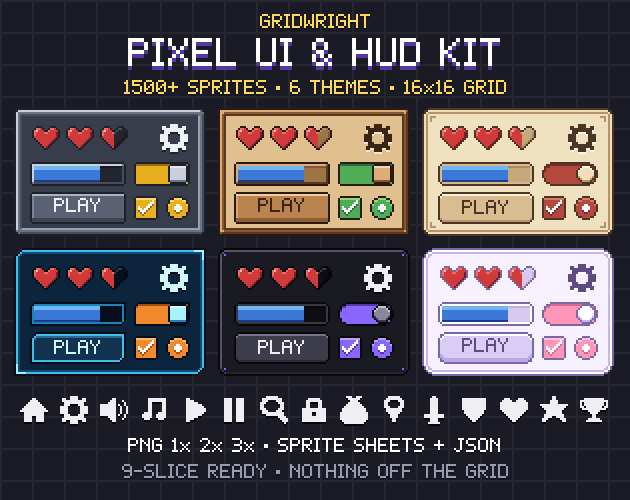
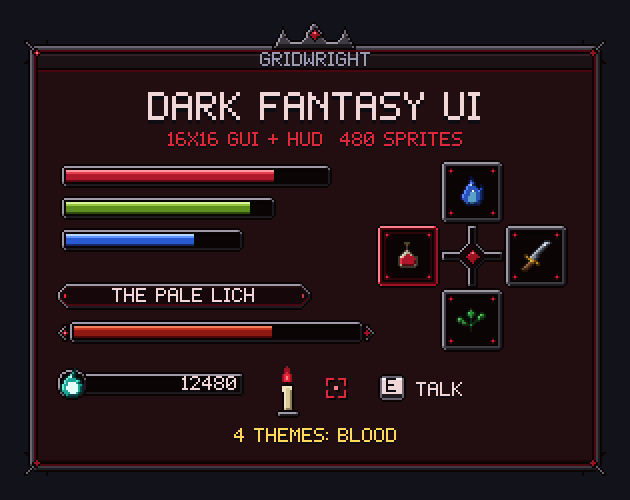
The Pixel UI Kit has both families in each of its 6 themes: hearts, mana drops, shields and stars, plus bar frames, fills for health, mana, xp and stamina, pips and a boss bar. Dark Fantasy UI has the delayed bar built in, with a damage trail fill (the pale part that drains after a hit) and a 4-frame low-health pulse.
Building the bars in Godot 4
Hearts are the simplest: an HBoxContainer with one TextureRect per heart, and a short script that gives each the full, half or empty texture from the current health.
For fill bars, Godot has TextureProgressBar, which its docs describe as useful for life or stamina bars. It draws up to three textures:
- texture_under: the bar's background.
- texture_progress: the fill, clipped by the node's value and fill_mode. It shows in full at max_value and not at all at min_value.
- texture_over: drawn on top, for highlights or a frame that hides part of the fill.
Turn on nine_patch_stretch and set the stretch_margin_* properties to the frame's corner sizes, and the bar can be any width without stretching its ends. texture_progress_offset moves the fill inside a fancy border. fill_mode has a bottom-to-top option for a health orb, and a clockwise one that turns the node into a radial bar for cooldowns.
A delayed damage bar is two TextureProgressBars in the same place, the trail behind and the health fill in front. On a hit, set the front value at once. For the back bar, call create_tween(), pause with tween_interval, then tween_property its value down to the new health. The Tween docs warn that when two tweens animate one property the last one created wins, so keep the tween in a variable and kill() the old one before starting the next.
Inventory grids
- Slot size on the pixel grid. Make each slot a whole number of tiles at 1x, with the icon centred in the slot's content area, and keep the gap between slots the same whole number of pixels everywhere.
- Stack counts. Put the number in the bottom-right corner, in a small pixel font with an outline or a dark backing so it reads over any icon. Leave room for the longest number you allow, or show a cap such as 99+.
- Rarity borders. Colour the slot border rather than the icon, so the icon stays readable, and give the top tiers a second cue such as a corner gem, since colour alone is easy to miss.
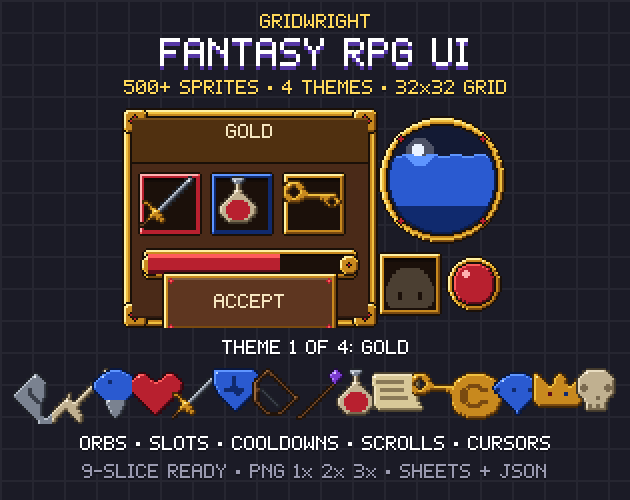
Fantasy RPG UI works on a 32x32 grid, with inventory slots in every state and 5 rarity colours, 12 equipment slots with ghost silhouettes and an 8-frame cooldown sweep for hotbar slots. The Pixel UI Kit's slots also come in 5 rarity colours, with an animated selector, and Dark Fantasy UI adds a stack count tag and a hub for 4 quick slots.
In Godot, a GridContainer lays the slots out once you set its number of columns. Each slot can be a NinePatchRect, which keeps a texture's corners intact, with its patch_margin values taken from the sprite's margins. With draw_center off it draws only the borders, which suits a selection frame over a slot. For a panel with a patterned middle, the tile stretch mode repeats the centre without distortion. More on margins in what 9-slice scaling is.
HUD layout: corners and safe margins
The middle of the screen belongs to the game, so the HUD lives in the corners. A common layout:
- Top left: health, with mana or stamina under it.
- Top right: currency, a minimap or a timer.
- Bottom centre: the hotbar or quick slots.
- Bottom right: key prompts and pickup messages.
- Boss bar: wide, across the top or bottom centre, and only during the fight.
Keep the same margin from the screen edge on every side, in whole pixels of the base resolution; 8 px at 640x360 is a reasonable start. A MarginContainer around the whole HUD gives that padding, set in the control's theme constants overrides.
Anchors keep each group in its corner when the window changes shape. A control's anchors run from 0.0 (top or left of the parent) to 1.0 (bottom or right); the anchor menu above the viewport sets common layouts in one click. With the expand aspect, where wider screens show more of the world, the docs say to anchor Control nodes to the correct corners. The black bars of integer scaling can't be drawn into, so the HUD stays inside the game's area.
Text that stays crisp
Godot's font docs give the fixes for blurry pixel text:
- Use the font at an integer multiple of its design size, with the Control at an integer scale too.
- Set the default texture filter to Nearest.
- For a TTF with a pixel look, set subpixel positioning to Disabled. Bitmap fonts don't need this, and Godot reads BMFont .fnt files.
- For outlined numbers, set Font Outline Color and Outline Size in the theme overrides, or draw an outline font under the text.
Pixel Fonts follows these rules: its 5x7 font is 9 px and crisp at 9, 18 and 27 px, a 3x5 Tiny font is made for HUD numbers, and an Outline font with the same spacing as Regular goes underneath. Every font comes as TTF and as BMFont at 1x, 2x and 3x. More in pixel fonts for games.
One style for the whole HUD
A HUD looks finished when bars, slots, panels and icons share one border style and palette. The three UI packs keep the same sprites, file names and sheet layout across their themes, so a whole interface reskins by swapping one folder, and each has a JSON map with 9-slice margins and content areas. Pick the grid first: Dark Fantasy UI's 16x16 grid is drawn for 320x180, 480x270 and 640x360 games. All four packs are on Gridwright, each bought once, with a free sample to try first.
Gridwright packs can be used in commercial games; you may not resell the files themselves. For the Pixel UI Kit, Dark Fantasy UI, Fantasy RPG UI and Pixel Fonts, a credit is appreciated but optional. Every pack released from October 28, 2026 asks for a credit: “Art by Gridwright” with a link (each pack’s LICENSE.txt says which applies). More in can I use game assets in a commercial game.