A virtual pet game looks simple: a small creature, a few buttons and some bars. The fun comes from a loop that runs while the player is away. Needs drop, the pet reacts, the player comes back and cares for it, and the pet grows. This guide walks through the parts you need to plan before you draw a single frame: the stats, the timer, the moods, sickness, life stages, and the sprites and screen pieces that make it all visible.
Start with the care loop
Every virtual pet game runs the same loop. A need goes down over time, the pet shows it, the player picks an action, the need goes back up and the pet shows that too. If any of those four steps is missing, the game feels dead. A bar that drops without the pet looking hungry is just a number. A pet that looks hungry with no way to feed it is just frustrating.
So for each need, write down three things: how fast it drops, how the pet shows it, and which action fixes it. That small table is your design document.
Which stats to track
Four or five stats are enough. More than that and the player cannot read the screen at a glance. A common set:
- Hunger: drops steadily; fixed by food. Treats raise happiness more than hunger.
- Happiness: drops slowly; fixed by playing, petting and treats.
- Energy: drops while awake, comes back while asleep; fixed by turning the lights off.
- Hygiene: drops after meals and when the pet makes a mess; fixed by cleaning.
- Health: only drops when other stats stay low for a long time; fixed by medicine.
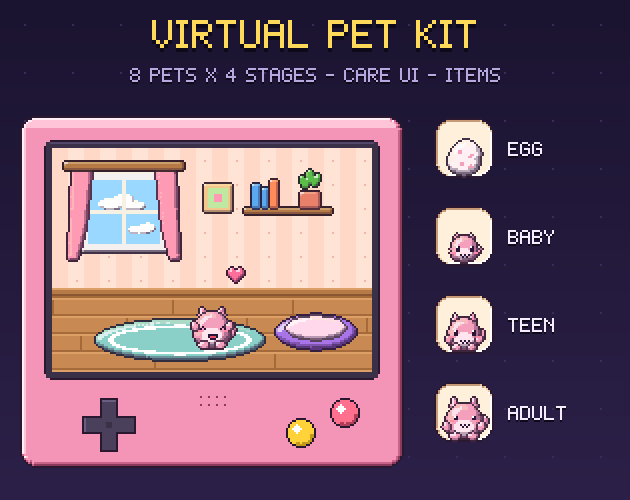
Keep every stat on the same scale, for example 0 to 100, and draw them the same way. A bar per stat with its own colour and icon reads instantly. Our Virtual Pet Kit has a bar frame with five fills (hunger, happiness, energy, hygiene, health) that sit exactly on the frame's content rows, so a fill can be stretched to the stat's value without lining it up by hand. A row of hearts is an alternative that works well on very small screens.
Time: real time or game time
Decide early whether needs drop in real time (the pet gets hungry while the app is closed) or only while the game runs. Real time is what makes the genre feel alive, but it needs care:
- Save a timestamp when the game closes and work out the elapsed time on the next start.
- Apply the drop in one step with a cap, so a week away does not end in a sad screen with no way back.
- Let the pet sleep at night in the player's time zone, so energy and the clock agree.
- Make the first hours gentle: a new player should see the pet happy before it gets hungry.
Tune the drop rates by playing for a few days. A good starting point is a need that empties over several hours, not minutes, unless you are making a short arcade version.
Moods come from the stats
The pet's animation is how the player reads the stats without looking at the bars. Pick the mood from the stats with a simple priority list: sick first, then sleeping, then sad when any stat is very low, then hungry or dirty, then happy when everything is high, and idle otherwise. A short burst state on top of that (eating, playing) plays once after an action and then returns to the mood.
Each mood needs its own animation. In the Virtual Pet Kit every stage has eight: idle with a blink, a happy jump, eating with chewing, sleeping with slow breathing, playing, sick (pale colours, dizzy eyes and sweat), sad (tears), and walking in both directions. Four frames each is enough for a 32x32 pet; what sells the mood is the face and a little squash and stretch, not the frame count. If you are drawing your own, our post on importing sprite sheets into Godot 4 covers setting up frames and speeds.
Show the mood above the pet too
Small effects make moods readable from across the room: a heart when happy, floating Zzz when asleep, a sweat drop when worried, a green swirl when sick, crumbs while eating, a music note while playing. A thought bubble with an icon (a food bowl, a moon, a pill) tells the player what the pet wants before a bar turns red. Keep these effects as separate sprites drawn over the pet, so one effect works for every species and stage.
Sickness and mess
Events give the player a reason to check in. The two classics are mess and sickness. After a meal, the pet sometimes leaves a mess on the floor; if it stays there, hygiene drops faster. If hygiene or hunger stays low for too long, the pet gets sick and health starts to fall until it gets medicine. Both events need a clear picture and a one-tap fix, plus a small reward animation (bubbles for cleaning) so fixing them feels good.
Life stages and evolution
Growth is the long-term goal. A simple and readable path is egg, baby, teen and adult. Each step should look clearly different: a bigger body, longer ears, a leaf that grows into a flower, wings that appear with age. Base the timing on days played, and let care quality decide small things, such as which colour or form the adult takes, if you want branching evolution later.
- Egg: wobbles, cracks and hatches. The hatch is the first big moment, so give it several frames.
- Baby: small, round, big eyes, needs frequent care.
- Teen: bigger, gets feet and arms, needs less attention.
- Adult: the full design, the reward for caring well.
An evolution chart with locked slots (a question mark until a stage is reached) gives players something to fill in, and it is one of the cheapest collection features to build.
The screen layout
Most virtual pet games use one of two layouts. The handheld look puts a small room inside a device frame with a few buttons under it, which feels nostalgic and works on phones and desktops. The room look fills the screen with the room and puts the bars and buttons in a panel at the side. Either way you need:
- A room or two to stand in, with the floor line where pets stand.
- Stat bars or hearts with icons.
- One button per action: feed, play, clean, sleep, medicine, pet, stats.
- Mood bubbles and effects drawn over the pet.
- Item icons for the food, treats, toys and medicine the player picks from.
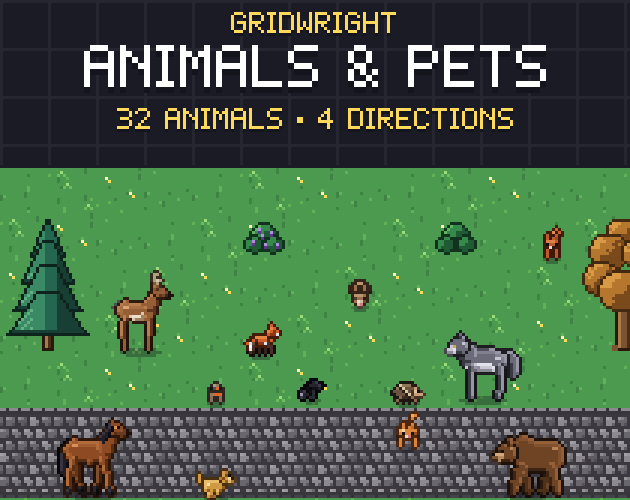
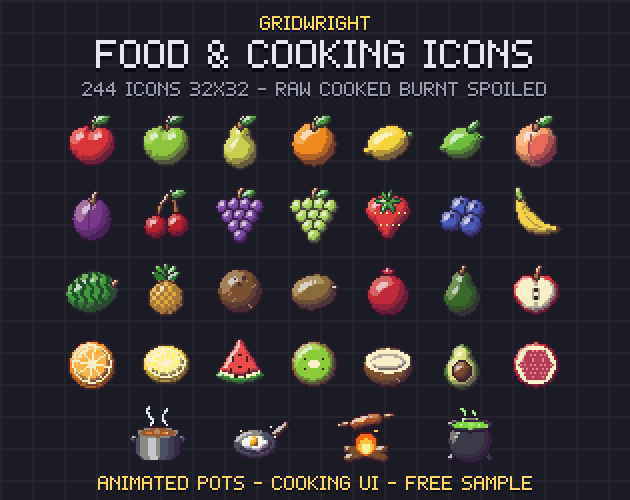
Use 9-slice panels so the side panel and pop-ups can be any size; our explainer on 9-slice scaling for pixel art UI shows how. If your game also has idle or clicker parts, such as coins earned while the pet works, the Idle & Incremental UI uses the same 16x16 grid. Food icons from Food & Cooking Icons fit a menu of meals, and for a top-down pet that walks around a bigger map, Animals & Pets has real animals in four directions.
Drive it with data
Keep species, stages and animations in a data file rather than in code. A JSON entry per species and stage that lists each animation's frames, speed and loop flag lets you add a new pet without touching the game logic. The Virtual Pet Kit ships a pets.json like that, with a suggested effect for each mood, so a happy animation knows to show a heart.
A short checklist
- 4 or 5 stats on one scale, each with an icon, a colour and an action.
- A saved timestamp and capped offline decay.
- A mood priority list and one animation per mood.
- Effects and thought bubbles drawn over the pet.
- Mess and sickness events with one-tap fixes.
- Egg, baby, teen, adult, with a hatch moment and an evolution chart.
You can use the art from our packs in commercial games, as long as you do not resell the files themselves. Packs released from October 28, 2026 on, the Virtual Pet Kit among them, ask for a credit: "Art by Gridwright" with a link. See can I use game assets in a commercial game for the details.