In a real-time strategy game the player makes one decision more often than any other: is that unit mine? A battle can have dozens of soldiers on screen, all moving, all small, often overlapping. If the player has to squint to tell a friendly spearman from an enemy one, every fight turns into guesswork. Team colors are the answer, and in pixel art they need a little planning, because a sprite that is 35 pixels tall has very few pixels to spare.
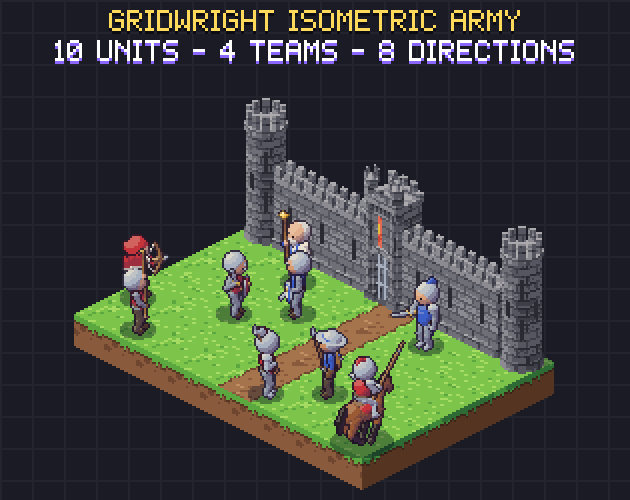
This guide covers how to plan team colors for pixel art units: which parts to recolor, how to build a color ramp that survives the change, how to swap colors in an engine instead of shipping endless copies, and what to test before you ship. The examples use Gridwright Isometric Army, a set of 10 isometric RTS units in 4 team colors, but the same rules work for top-down and side-view units.
Decide what the team color is allowed to touch
The most common mistake is recoloring too much. If the whole soldier turns red, the red team becomes a set of red blobs and the player can no longer tell an archer from a swordsman. A unit has two jobs on screen: say which team it is on and say what kind of unit it is. Give each job its own pixels.
A rule that works well is to keep the team color on cloth and paint and nothing else:
- Tabards, tunics and capes: the largest flat areas, so they carry the color from far away.
- Hoods, plumes and hat bands: they sit on top of the sprite, so they stay visible when units overlap in a crowd.
- Shield faces and banners: the most recognisable shapes on the battlefield.
- Saddle cloths on mounts: a horse is big, and a strip of team color tells you whose cavalry it is.
- Not metal, skin, wood or leather: these stay the same in every team, so armour still reads as armour and a face still reads as a face.
In Gridwright Isometric Army only the team cloth changes between red, blue, green and yellow. The swordsman keeps his steel helmet and mail, the archer keeps a leather jerkin, and the crossbowman's kettle hat stays steel with a team colored band. That band matters: when a unit is lying down or seen from behind, a small patch of team color on top of the head is often the only one left in view.
Build each team color as a ramp, not a single color
Pixel art is shaded with a handful of tones per material, from the darkest shadow to the brightest highlight. A team color has to be a full ramp of the same length, or the shading breaks when you swap it. If the original red tabard uses six tones, the blue version needs six blues that step from dark to light in the same way.
- Use the same number of tones for every team, in the same order, dark to light.
- Keep the light steps similar: a yellow ramp is naturally lighter than a blue one, so check that the yellow team does not look flat or glowing next to the others.
- Shift the shadows a little toward a cool or purple tone and the highlights toward a warm one. Every team then shares the same lighting and sits in the same world.
- Pick hues that differ in brightness as well as hue. Red and green are close in brightness, which makes them hard to tell apart for color-blind players; a lighter yellow and a darker blue help.
Our army ships each team's ramp in its characters.json: six colors per team, listed from dark to light. That list is what makes the next step possible.
Palette swaps: one sprite sheet, any number of teams
Shipping a separate sprite sheet for every team is simple and works in every engine, which is why the pack includes all four teams as ready PNGs. But a game with eight players, or a player-chosen color, needs another approach: draw the unit once and change the team ramp while the game runs.
The trick only works if the team colors are used nowhere else in the sprite. If the red ramp also appears on a brick or a fire effect, a swap would recolor those too. So the rule is strict: the team ramp belongs to the team cloth and to nothing else. Our build checks this for every unit before the pack is delivered. With that guarantee in place, the swap itself is short:
- Store the six source colors (for example the red team's ramp) and the six target colors for the player's team.
- In a sprite shader, compare each pixel to the six source colors; when it matches one, output the target color at the same position in the ramp.
- Leave every other pixel unchanged, so steel, skin and wood keep their colors.
- Use nearest-neighbor filtering so the pixels you compare are exactly the colors in the file, not blends between them.
Because the ramps keep the same order, shading survives the swap: the darkest red becomes the darkest blue, the highlight becomes the highlight. The same idea works without a shader too: recolor the sheets once when the game loads and cache the result.
Directions, crowds and big units
RTS units turn constantly, so team color has to survive every direction. A unit drawn in 8 directions shows its back in three of them, and many designs lose the team color there because the tabard or shield is on the front. Check the back views on purpose. Capes, hoods, plumes and a shield slung on the back keep the color visible when a soldier walks away from the camera. In our army every direction is drawn separately and none is mirrored, so a sword stays in the right hand and the light stays on the left. A mirrored sprite would also flip any asymmetrical team markings.
Crowds are the second test. Put ten units of two teams in a tight group and look at it at the game's real zoom. If you cannot count the teams in a second, add color to the top of the sprite, where units overlap least. Mounted units need the opposite care: a horse is mostly brown, so a team colored saddle cloth and a plume on the rider do the work. Our mounted knight uses both.
Check it in a real scene
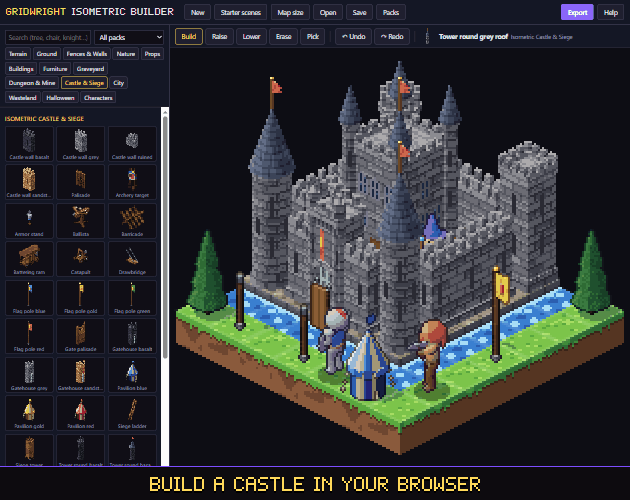
Single sprites on a gray background hide most problems. Build a small battle instead: a few units of each team, the ground they will fight on, buildings, and the effects you will use. In isometric games this also tests the draw order, since units walk behind walls and in front of each other. If you want to try that quickly, the Gridwright Isometric Builder has the army inside, with a group per team, next to the castle walls of Isometric Castle & Siege and the tiles they stand on. If you are still choosing a view, isometric or top-down is the first decision to make.
A short checklist before you ship:
- Can you tell every team apart at the game's real zoom, in a crowd, from behind?
- Does each team ramp have the same number of tones in the same order?
- Is the team ramp used anywhere outside the team cloth? It should not be.
- Do units of different types still look different when they share a color?
- Does the mounted unit carry the color on both the rider and the mount?
- Did a color-blind check (or a grayscale screenshot) still separate the teams?
Mixing heroes and armies
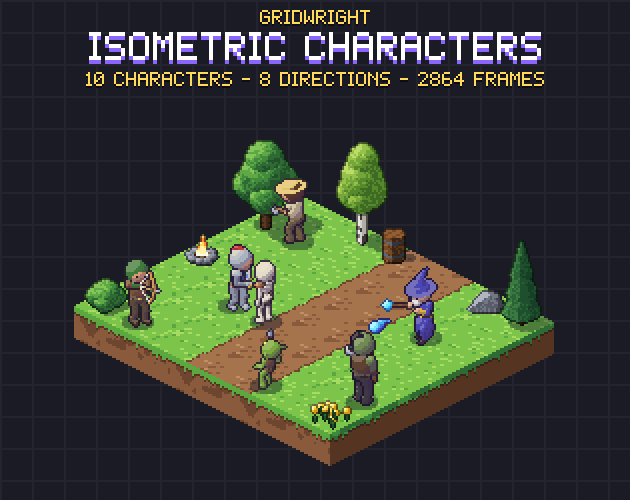
Many strategy games mix named heroes with ordinary troops. Heroes usually break the team-color rule on purpose, with a unique outfit, so the player can find them in a crowd. The army units and the heroes of Isometric Characters share the same 64x64 cells, anchor point and JSON format, so a knight hero can lead a squad of blue spearmen without a second code path.
Gridwright packs can be used in commercial games; you may not resell the files themselves. Packs released from October 28, 2026 ask for a credit: “Art by Gridwright” with a link (each pack’s LICENSE.txt says which applies). The details are in can I use game assets in a commercial game.