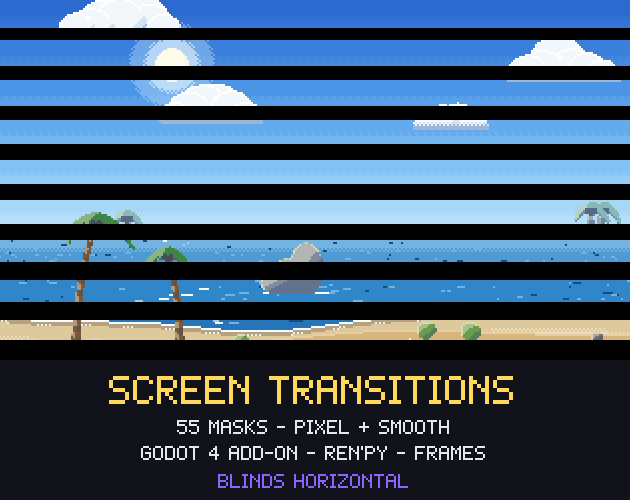
A screen transition is the half second between two scenes: the level fades out, a circle closes on the hero, diamonds sweep across the screen and the next room appears. Players barely notice a good one, but they notice a hard cut or a stutter. This guide shows the simplest way to get many different transitions in Godot 4 with one shader, and how the same idea works in Ren'Py and in engines without shaders.
The idea: one shader, many grayscale masks
Most transitions are the same effect with a different shape. Instead of writing a shader per transition, store the shape in a grayscale picture called a mask. Dark pixels are covered first and white pixels last. A single number, progress, goes from 0 to 1: every pixel whose mask value is at or below progress is covered.
That gives you a wipe (a horizontal gradient), an iris (a radial gradient), diamonds in tiles (a gradient repeated per tile plus a sweep), a dissolve (random values) and anything else you can paint in gray. Changing the transition means changing one texture.
- Dark first, white last: the mask decides the order, progress decides the moment.
- Invert the mask to play the shape the other way (an iris that closes instead of opening).
- Run progress back from 1 to 0 to uncover the next scene, or invert the mask so the uncovering keeps the same direction.
- A soft edge is a smoothstep around progress; a hard edge is a step, which suits pixel art.
The shader
In Godot 4 the overlay is a ColorRect that fills the screen, inside a CanvasLayer with a high layer number so it draws over everything, including UI. Its material is a canvas_item shader with a few uniforms: the mask texture, progress, the edge softness, the fill colour and an invert flag. The fragment function reads the mask at UV, compares it with progress and writes the fill colour with the resulting alpha.
Two details matter. First, sample a pixel art mask with nearest filtering, or neighbouring values blend and a pixel dissolve turns into a blurry fade: in Godot 4 the safest way is a sampler uniform with the filter_nearest hint. Second, stretch the soft edge so progress 1 really covers the last white pixels: compute the edge at progress times one plus the softness.
Driving it from a script
Make the overlay an autoload so it survives scene changes. A Tween animates the progress uniform, and because a tween can be awaited, a scene change reads like a sentence: cover, change the scene, wait a frame, reveal. Set the tween to keep running while the game is paused, so a transition out of a pause menu still finishes.
- cover(mask): tween progress from 0 to 1, then emit a signal.
- change_scene_to_file(path) while the screen is covered, then wait one or two process frames so the new scene is in the tree.
- reveal(mask): tween progress back to 0 and hide the overlay.
- Block input while a transition runs, so a second key press cannot start a second one.
Our Screen Transitions pack ships exactly this as a Godot 4 add-on: enable the plugin and call await Transition.change_scene("res://level_2.tscn", "diamonds_left"). The build tests it in Godot 4.7.2 by rendering the overlay at set progress values and measuring how much of the screen is covered.
Even speed: why masks should be equalised
A plain radial gradient makes an iris that starts slow and ends fast, because the area of a circle grows with the square of its radius. A wipe, on the other hand, covers the same area every frame. Put both in one game and the iris feels sluggish at the start and abrupt at the end.
The fix is to equalise the mask: rank all its pixels and spread the ranks evenly from 0 to 255. Then at progress 0.5 exactly half the screen is covered, whatever the shape. Every transition takes the same time to feel finished, and you can pick one duration for the whole game. The order of the pixels stays the same, so the shape does not change.
Pixel art and smooth versions
For a pixel art game the mask should live on the game's own pixel grid. A 320x180 mask sampled with nearest filtering scales by exactly 4 to 1280x720 and by 6 to 1920x1080, so the edge moves in whole game pixels, like the rest of the art. For a high resolution game use a full size mask with a soft edge of about 0.05 to 0.1. If the shapes are computed from the same formulas at both sizes, a game can even switch between them in its settings.
If your scenes use Parallax Backgrounds or other 320x180 art, the 320x180 masks line up with them pixel for pixel. Our post on importing pixel art sprite sheets into Godot 4 covers the import and filter settings that keep the rest of the game crisp.
Ren'Py: ImageDissolve takes the same masks
Visual novels change scenes more often than any other genre, and Ren'Py already has the right tool. ImageDissolve takes a control image, a time and a ramp length. By default white pixels change first; pass reverse=True and dark pixels change first, the same convention as above. The image should be the size of the scenes being dissolved, so keep one set per game resolution.
A line such as scene bg street with gw_iris_circle then works like any built-in transition. If you are building the rest of the interface too, our post on pixel art GUIs for Ren'Py and the Pixel VN UI kit cover the screens around it.
Engines without shaders: frame sheets
Not every project wants a shader. The same mask can be baked into a short animation: for frame k of n, cover every pixel whose value is at or below k divided by n minus one, and save the result as black with alpha. Sixteen frames at 320x180 are enough for a smooth half second at 30 frames per second, and the sheet plays as an ordinary sprite in GameMaker, Unity, Defold or LÖVE. Tint it at draw time for other colours.
A short checklist
- Keep the overlay above the UI (a high CanvasLayer layer) and let it ignore the mouse.
- Pick one duration (0.4 to 0.8 seconds suits most games) and one or two shapes that fit the game's mood.
- Use a hard edge and nearest filtering for pixel art, a soft edge for HD.
- Wait for the new scene before you reveal it, or the first frame shows the old one.
- Match the transition to the moment: an iris for a death or a level end, a wipe for moving between rooms, a dissolve for a flashback.
Everything in the pack can be used in commercial games; only reselling the files themselves is not allowed, and the pack asks for a credit: "Art by Gridwright" with a link. More on that in can I use game assets in a commercial game. If you are starting a Godot project from scratch, the Gridwright Survivors Template shows a whole game built from our packs.