Put a 2D light next to a plain sprite and the whole sprite gets brighter, like a cardboard cut-out held up to a lamp. Give the same sprite a normal map and the side facing the torch lights up while the far side stays dark, and the cut-out starts to look like an object. This guide explains what a normal map is, why pixel art needs a different kind of normal map from painted or 3D art, and how to use one in Godot 4 and in Unity's URP 2D lights.
What a normal map is
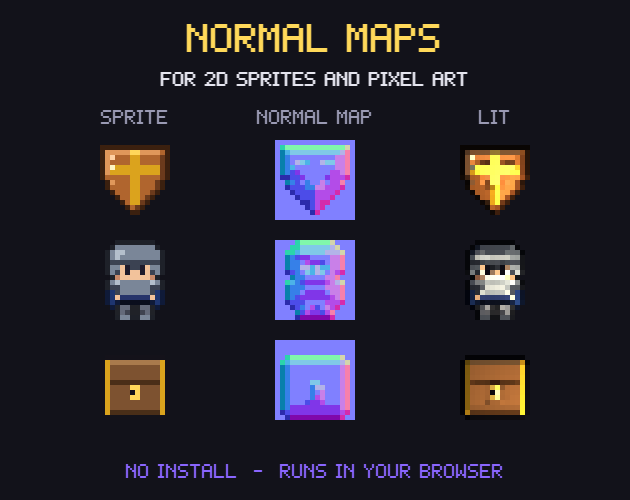
A normal map is a picture that stores directions instead of colours. Godot's documentation puts it simply: it represents the direction in which each pixel is pointing, and the engine uses that to light 2D surfaces in a physically plausible way. Unity's manual adds how: the red, green and blue values of each pixel hold the X, Y and Z of a direction, which is why normal maps have their bluey-purple tinge. So the colours are never meant to be looked at: they are numbers the light reads.
Two related maps often travel with it. A height map is greyscale, where whiter means raised, and normal maps are usually made from one. A specular map says how much each pixel reflects the light: brighter values give a brighter highlight. Godot's lights read both, through the normal and specular slots of a CanvasTexture.
Why pixel art needs stepped normals
A normal map generated the usual way is smooth: the direction changes a little from one pixel to the next, so the light slides across the sprite in a soft gradient. On a painted sprite that looks right. On pixel art it looks wrong, because the colour art is made of flat bands and hard steps, and a soft light gradient on top blurs the very edges the artist placed by hand.
The fix is to step the normals the way the colours are stepped. Our Normal Maps tool snaps every pixel to 4, 8 or 16 directions and 1 to 4 tilt steps, so the light falls in clean bands instead of a gradient, and its preview uses one light value per pixel with a light that follows your mouse, with optional cel-shaded bands. It builds the maps from the outline (a bevel with a width and 4 profiles) and from the colours (the detail), and saves normal, height, specular and occlusion maps.
- Fewer directions (4) give a chunky, poster-like light that suits small sprites.
- More directions (16) suit big sprites with room for curves.
- One or two tilt steps keep the edges crisp; more steps get closer to a smooth light.
- Judge it under a moving light, not as a still picture: a normal map that looks noisy on its own can light perfectly.
Sprite sheets and animation
Animated characters need a normal map for every frame, in the same place on the sheet, because the engine reads the normal map with the same coordinates as the sprite. Unity's guide says it directly: the texture map has to line up with the sprite texture. A generator that treats the whole sheet as one picture causes a quieter problem: a bevel worked out from the outline runs past the edge of one frame into the next. The Normal Maps tool asks for the frame size, any size and any number of frames, so the bevel stops at each frame's border.
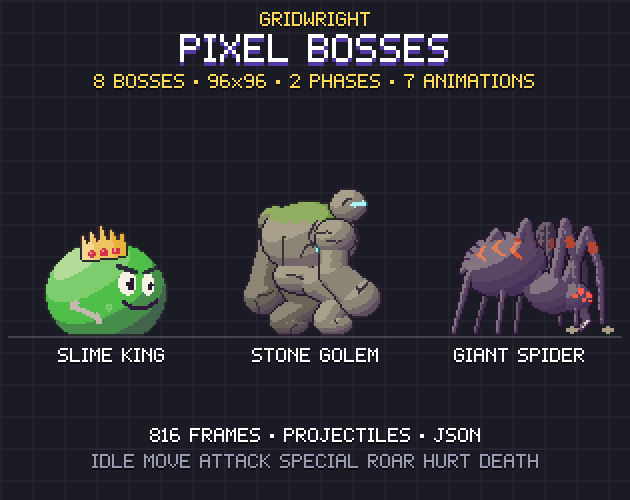
Pixel Bosses is a good test. Every frame of its eight bosses is exactly 96x96, the sheets come with a JSON of every frame's rectangle, and each boss faces right and left as separate files. Type 96 as the frame size and make a map for each file, so the light falls on the correct side for each facing. A specular map is where design comes in: the Slime King's body can shine, while the Elder Treant's bark should stay matte.
Tiles that keep tiling
Seamless tiles have their own trap. A bevel reads the edge of the picture as the edge of a shape, so every tile gets a raised rim and a lit floor turns into a grid of pillows. The tool wraps edges inside each frame for tiles, so the maps tile like the texture. It also saves Y+ normals (OpenGL, which Unity and Godot use) or Y- (DirectX); if the light on your sprites seems to come from below, the green channel is the wrong way round.
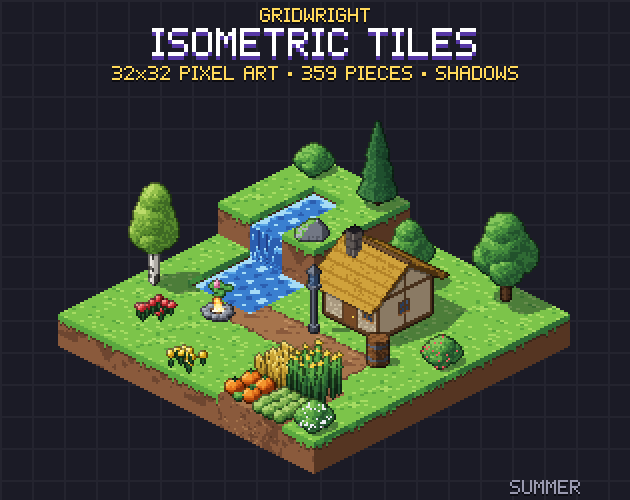
Lit tiles pay off most where the light moves. Isometric Tiles has lamp posts in day and lit versions, an animated campfire and a brazier, and no shadow is baked into its art, so 2D lights can do the work. With the light source's own texture from a pack such as 2D Lights & Glow, which has a pixel style with 6 flat bands, the light and the normal map step together.
Normal maps in Godot 4
In Godot both PointLight2D and DirectionalLight2D support normal and specular maps, on any 2D element, including Node2D and Control nodes. On a Sprite2D, create a new CanvasTexture for its texture, then fill in:
- Diffuse > Texture: the sprite itself.
- Normal Map > Texture: the normal map.
- Specular > Texture: the specular map, usually greyscale; Specular > Color multiplies the reflections.
- Specular > Shininess: lower values give brighter, wider reflections; higher values more localised ones, suited to wet surfaces.
- Texture > Filter: can override the filtering, useful to keep pixel art on nearest.
One thing surprises everyone the first time: with normal mapping on, the lights look weaker. Godot's docs explain that a light sits very close to the surfaces by default, and recommend raising the light's Height property, and perhaps its Energy a little. Height only makes a visible difference on surfaces that use normal mapping. Our post on 2D lighting for pixel art in Godot 4 covers the lights themselves.
Normal maps in Unity URP
In Unity's 2D renderer, normal maps and mask maps are called secondary textures. Import the normal map and set its Texture Type to Normal Map. Make sure the Sprite Renderer uses a material that supports texture maps, such as the default Sprite-Lit-Default. Then open the Sprite Editor on the sprite's texture, choose Secondary Textures from the dropdown, add one with the + button, pick _NormalMap as its name, drag the map into the Texture field and select Apply.
On each Light 2D, the Normal Maps section sets the quality: Disabled, Accurate, or Fast, which is quicker but can produce artefacts. Normal Map Distance changes the distance between the light and the lit sprite without moving the light or changing its intensity. Unity notes a cost: adding normal maps adds a depth pre-pass for each layer batch, which can reduce performance, so use them where the light really moves.
A normal map checklist
- Stepped normals for pixel art: few directions, few tilt steps.
- One map per sheet with the frame size set, so bevels stop at frame edges.
- Wrapped edges for seamless tiles.
- Y+ for Godot and Unity; flip the green channel if light comes from below.
- A specular map only where things should shine.
- In Godot, raise the light's Height; in Unity, set the Light 2D's normal map quality.
Normal Maps, Pixel Bosses and Isometric Tiles are on Gridwright, each bought once, with a free demo or sample to try first. The tool's demo does everything and saves maps up to 64x64 pixels.
Gridwright packs can be used in commercial games; you may not resell the files themselves, and the maps you make with Normal Maps are yours to use in any game. Packs released from October 28, 2026 ask for a credit: “Art by Gridwright” with a link. Pixel Bosses and Isometric Tiles came out before that, so for them a credit is optional; 2D Lights & Glow asks for it. More in can I use game assets in a commercial game.