You drop a pixel art sprite sheet into Unity and it comes out soft, the colours slightly off, and as one big picture instead of many sprites. Nothing is broken: Unity's defaults are made for textures in general, not for 16-pixel art. This guide covers the settings that keep pixels sharp, the two ways to cut a sheet into sprites (a grid, or the JSON file that came with it), 9-slice borders, tile palettes and the Pixel Perfect Camera, following Unity 6's manual.
Set the import settings first
Select the sheet in the Project window and change these in the Inspector before you slice anything. Unity's guide to pixel perfect sprites asks for the same three things: the same Pixels Per Unit on every sprite, Filter Mode set to Point and Compression set to None.
- Texture Type: Sprite (2D and UI).
- Sprite Mode: Multiple. Unity's reference says to choose it when the texture has several elements in the same image.
- Pixels Per Unit: the number of image pixels that make one unit in the world. For a 16x16 tileset, 16 makes one tile one unit.
- Filter Mode: Point (no filter). With Bilinear, in the reference’s own words, the texture appears blurry up close.
- Compression: None, so the palette stays exactly as it was drawn.
- Mesh Type: Full Rect for anything you will 9-slice. Unity notes that sprites smaller than 32 x 32 use Full Rect anyway.
Pick one Pixels Per Unit for the whole game and keep it. If the tiles are imported at 16 and the characters at 32, a character ends up half the size it was drawn at.
Slice by grid when every sprite is the same size
Click Open Sprite Editor, then the Slice dropdown. Grid By Cell Size cuts the sheet into sprites of equal size, Grid By Cell Count into rows and columns, and Automatic follows the transparency, which only works when each image is separated by transparent pixels. Pixel Size sets the cell, Offset and Padding move and space the grid, and Keep Empty Rects keeps empty cells so the sprite numbers follow their place on the sheet.
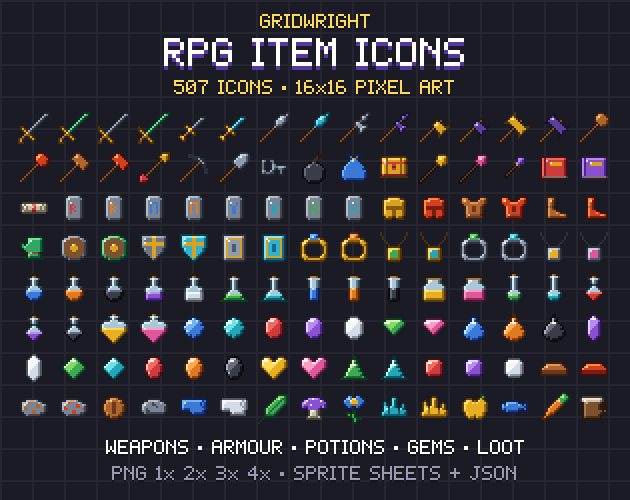
A grid is perfect when every sprite really has the same size. In RPG Item Icons every icon is exactly 16x16, on a sheet per category and one sheet with all 507, so Grid By Cell Size at 16 x 16 cuts any of them cleanly. Automatic is the wrong choice for tiles: a grass tile fills its cell edge to edge, so there is no transparent gap and Unity merges the whole field into one sprite.
If your frames are loose files instead of a sheet, the Sprite Sheet Maker lays them out in a grid with the frames per row you choose, and a grid sheet is exactly what Grid By Cell Size expects.
When the sheet comes with a JSON file
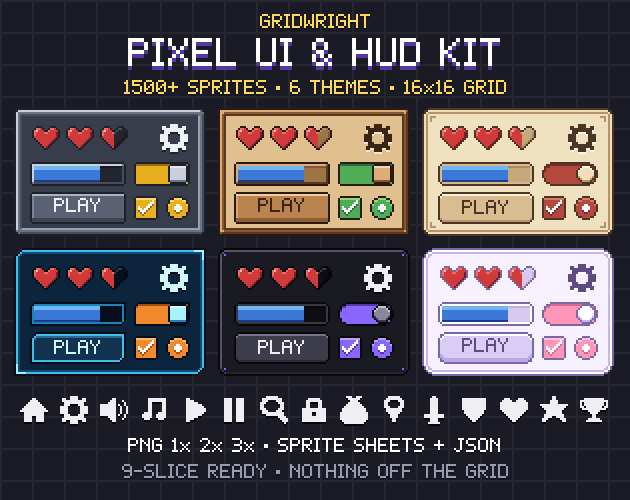
A grid fails as soon as the sizes are mixed. The Pixel UI Kit sits on a 16 grid, but its sprites are 16, 32 or 48 pixels wide and high: a 16 grid would cut a 48x48 panel into nine pieces. That is why each of its sheets has a JSON map. Its format is simple: the image name, the scale, the grid, the sheet size, and under sprites one entry per name with x, y, w and h, plus slice margins and a content area for panels and bars. The Top-Down Tileset has one tiles.json with every sheet and every tile's rectangle, and its props are 16x16, 16x32 or 32x32.
Unity has no button for a third-party JSON, but its 2D Sprite package has an API for it. The Sprite Editor Data Provider lets a custom importer or editor tool add, change and remove sprite data. A small editor script does it in a few steps:
- Get the data provider for the texture: create SpriteDataProviderFactories, call Init, then GetSpriteEditorDataProviderFromObject with the texture's importer, and InitSpriteEditorDataProvider.
- For every entry in the JSON, make a SpriteRect with its name, a new spriteID from GUID.Generate() and its rect.
- Hand the list to SetSpriteRects. On Unity 2021.2 and newer, also add a name and file id pair for each sprite through ISpriteNameFileIdDataProvider.
- Call Apply, then SaveAndReimport on the importer.
One detail catches everyone. Unity's texture coordinates put (0, 0) at the lower left corner, while our JSON counts from the top left, as image files do. So the rect's y is the sheet height minus y minus h. The sheet height is in the JSON too, under size.
9-slice the interface panels
Panels and buttons have to stretch without stretching their corners. In the Sprite Editor, drag the green handles inward or type the borders into the Sprite overlay's L, R, T and B fields; Unity calls the result nine areas: a centre, four walls and four corners. Then, on a Sprite Renderer, set Draw Mode to Sliced or Tiled. Tiled has two tile modes: Continuous, where the texture doesn't stretch and edge tiles may be cut, and Adaptive, where the centre stretches up to the Stretch Value and then repeats. For a Unity UI Image, the kit's README gives the same route: the border in the Sprite Editor, then Image Type Sliced.
The UI Kit's numbers are in its README and JSON. Panels, windows, bubbles and the dropdown list are 48x48 with margins of 16 on all four sides; wide buttons, bars, inputs and tabs are 48x16 with 16 left and right. Multiply the margins by 2 or 3 for the 2x and 3x files. Its stretch areas are flat on purpose, so both stretch and tile modes work. If you set borders from the editor script, note the order: Unity's Sprite.border is documented as left, bottom, right, top, while the kit's slice lists left, top, right, bottom, so swap the second and fourth values. More on the method in what is 9-slice scaling.
Tiles go into a tile palette
For a tilemap, create a palette with Assets > Create > 2D > Tile Palette, open Window > 2D > Tile Palette, and drag the sliced sheet onto it. Unity's manual says that a texture with Sprite Mode set to Multiple becomes one tile per child sprite. The tile assets aren't connected to the source texture, so slice and name everything before you drag, or you will build the palette twice.
In the Top-Down Tileset the neighbour bitmask is part of every name, grass_blob_007 for example, and tiles.json explains it: north 1, north-east 2, east 4 and so on round the tile. The pack has no Unity project files, so you wire the autotiles yourself, but the numbers tell you which tile goes where. Why there are 47 tiles is in how to make a 47-tile blob autotile set.
Add the Pixel Perfect Camera
Sharp sprites can still shimmer when the camera scales them by odd amounts. In URP, the Pixel Perfect Camera comes with the Universal 2D template; Unity warns not to install the separate 2D Pixel Perfect package, which works only with the Built-In Render Pipeline. Add the component to the main camera and set:
- Assets Pixels Per Unit: the same value as your sprites.
- Reference Resolution: the resolution your art is drawn for. Unity's example is 320 x 180.
- Crop Frame: None, Pillarbox, Letterbox and a few more, to hide the area beyond that aspect ratio with black bars.
- Grid Snapping: Pixel Snapping aligns sprites to the pixel grid without moving their Transform; Upscale Render Texture draws the scene at the reference resolution and scales it up.
Two last steps from the same guide: set each sprite's Pivot to Custom with Pivot Unit Mode in pixels, and set the Scene view's grid size to 1 divided by the Pixels Per Unit, 0.0625 for 16. If you are not sure which reference resolution fits your tile size, the Pixel Art Size Calculator shows the whole-number scale on common screens and the Unity values to type in.
A checklist before you start building
- Sprite Mode Multiple, Point filter, no compression, the same Pixels Per Unit everywhere.
- Grid slicing for sheets of equal cells, the JSON and an editor script for mixed sizes.
- The y of every rect flipped from top-left to lower-left.
- Full Rect and borders on every panel you stretch.
- Tiles named before they go into a palette.
- A Pixel Perfect Camera with the same Pixels Per Unit and a reference resolution.
Pixel UI Kit, Top-Down Tileset and RPG Item Icons are on Gridwright, each bought once with a free sample to try first.
Gridwright packs can be used in commercial games; you may not resell the files themselves. Packs released from October 28, 2026 ask for a credit: “Art by Gridwright” with a link. These three came out before that, so for them a credit is optional. More in can I use game assets in a commercial game.